Guide
Fix a wrong total in Excel and keep the formula
Find a SUM range that misses rows or a total typed as a number, fix it as a formula by hand or with AI, and check everything that depends on it.
- Nebula Writer Team
- October 14, 2026
- 6 min read
A total in Excel is usually wrong for one of two reasons: the SUM range stops a row too early, or someone typed the total as a number and it stopped updating. The fix in both cases is a formula that covers every row, with the inputs and formats left alone. This guide shows how to spot the problem, how to fix it in Excel yourself, and how to have the agent make the same fix and show it to you before you keep it.
The example
The sheet below is an example we made up to show the problem. It is not a recorded run.
On a sheet called Quarter 2, column E holds revenue for five regions in rows 2 to 6. The total sits in E7.
| Row | Region (A) | Revenue (E) |
|---|---|---|
| 2 | North | 40,000 |
| 3 | South | 35,000 |
| 4 | East | 25,000 |
| 5 | West | 20,000 |
| 6 | Central | 30,000 |
| 7 | Total | 120,000 |
The five values add up to 150,000, but E7 shows 120,000. E7 holds =SUM(E2:E5). The Central row was added after the formula was written, and the range never grew to include it.
The second version of the same problem looks identical on screen: E7 shows 120,000, but the cell holds the typed number 120000 and no formula at all. It was right once, and it has not changed since.
How to spot it
Three checks find both problems quickly.
- Read the formula bar. Click the total. If the bar shows
=SUM(E2:E5)while your data runs to row 6, the range is short. If it shows a plain number, the total is typed. - Show formulas. In Excel, press Ctrl+` (the grave accent key, usually above Tab) or choose Formulas, then Show Formulas. Every cell shows its formula instead of its result, so a typed total stands out in a column of formulas, and a range that stops early is easy to compare with its neighbours. Press it again to go back. Microsoft documents this on its show and print formulas page.
- Add it up another way. Select E2:E6 and read the sum in Excel's status bar, or type
=SUM(E2:E6)in a spare cell. If that number differs from the total, the total is wrong.
The plain fix in Excel
Click E7 and type =SUM(E2:E6), then press Enter. If the total was a typed number, this replaces it with a formula. If it was a short range, this widens it.
To stop it happening again, turn the data into a table (Insert, then Table) and use a total row. A table's total grows when you add rows, so the next region added at the bottom is counted. Then check anything that reads E7: a summary sheet, a percentage of total, or a chart.
The agent route
The agent is useful when the sheet is long, when you are not sure which totals are wrong, or when the same fix is needed on several sheets. In Nebula Writer it reads the workbook's formulas and the values next to them, and it writes a formula into a cell rather than a number. Start by asking it to find the problems without changing anything.
Prompt
In @finance/regional-revenue.xlsx, check every total on the Quarter 2
sheet. For each one, say whether its formula covers every row of data above
it, or whether it is a typed number instead of a formula. Give the cell, the
current formula or value, and what the correct range would be. Do not edit
the workbook.
You should see a list of totals in the agent pane, for example "E7: =SUM(E2:E5), misses row 6", and no review bar, because nothing changed.
Then ask for the fix and say what must stay as it is.
Prompt
On the Quarter 2 sheet of @finance/regional-revenue.xlsx, change E7 so it
is a formula that sums E2:E6. Do not type the total as a number. Keep every
input value, number format, cell style and column width as it is, and leave
the other sheets alone. Then tell me which cells or charts depend on E7.
You should see a Review workbook edit bar with one change, and E7 highlighted in the grid.
What should change, and what should not
Only the total's formula should change. Open Inspect changes and check that the list holds one cell, E7, with the old formula or number under Before and =SUM(E2:E6) under After. Click E7 and read the formula bar to confirm it holds a formula.
These should be exactly as they were:
- The values in E2 to E6
- Number formats, such as currency symbols and thousands separators
- Cell styles, borders and column widths
- Every other sheet
A workbook edit is kept or discarded as one decision. If anything outside E7 changed, choose Discard edit, which puts the workbook back exactly as it was, and ask again with a narrower request. If the result is right, choose Keep edit.
If the agent inserted or removed rows on the way, a second banner may appear: Review workbook structure before accepting these changes. Read what it lists before you keep the edit, because moved rows can shift other ranges.
A real example of "formula unchanged"
On October 3, 2026 we ran the agent on a small sample workbook we built for testing. On its Review sheet, B4 ("Conversion rate") held =B2/C2 and displayed 0.125. We asked for it to show as a percentage with one decimal place, and to keep the formulas and stored values unchanged.
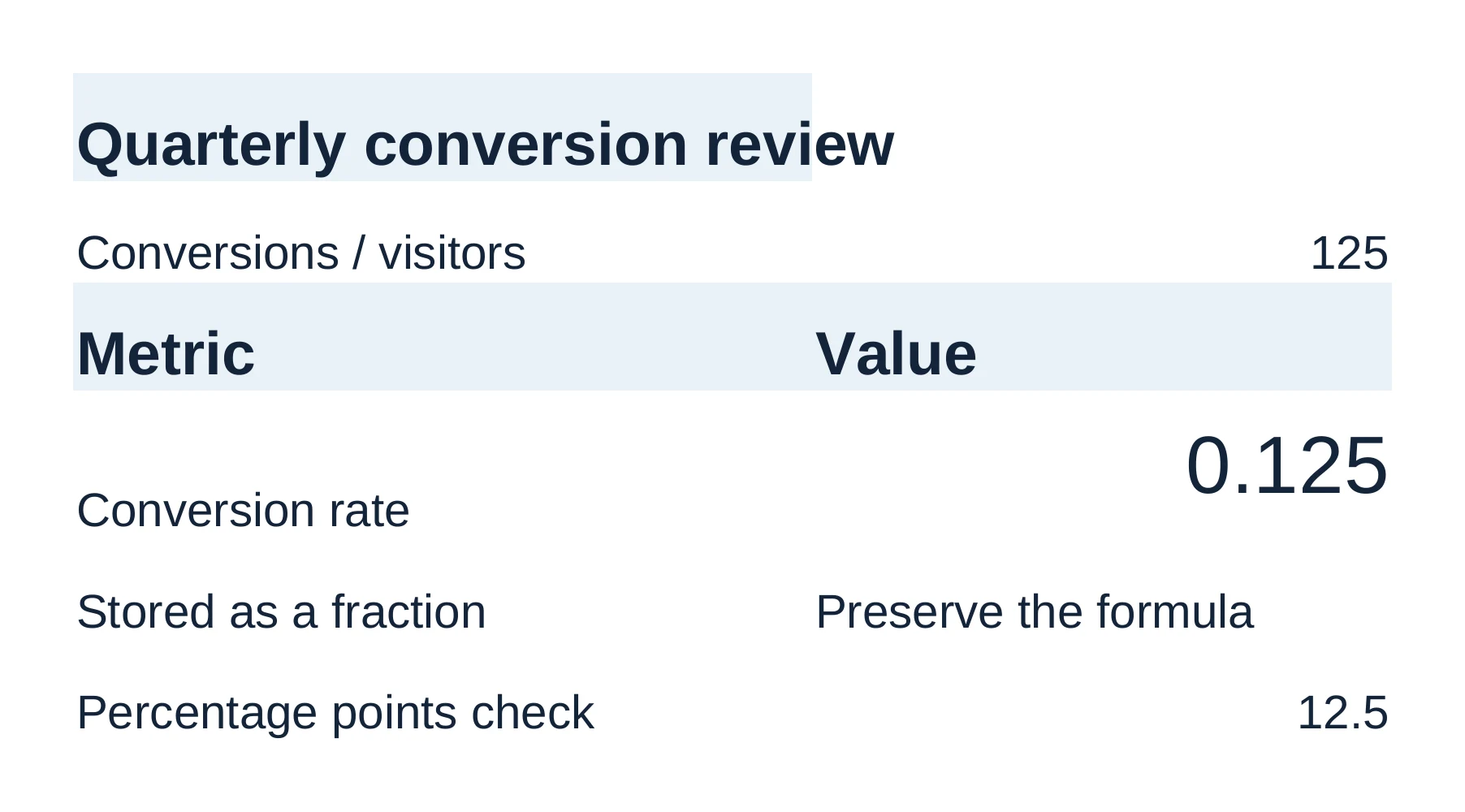
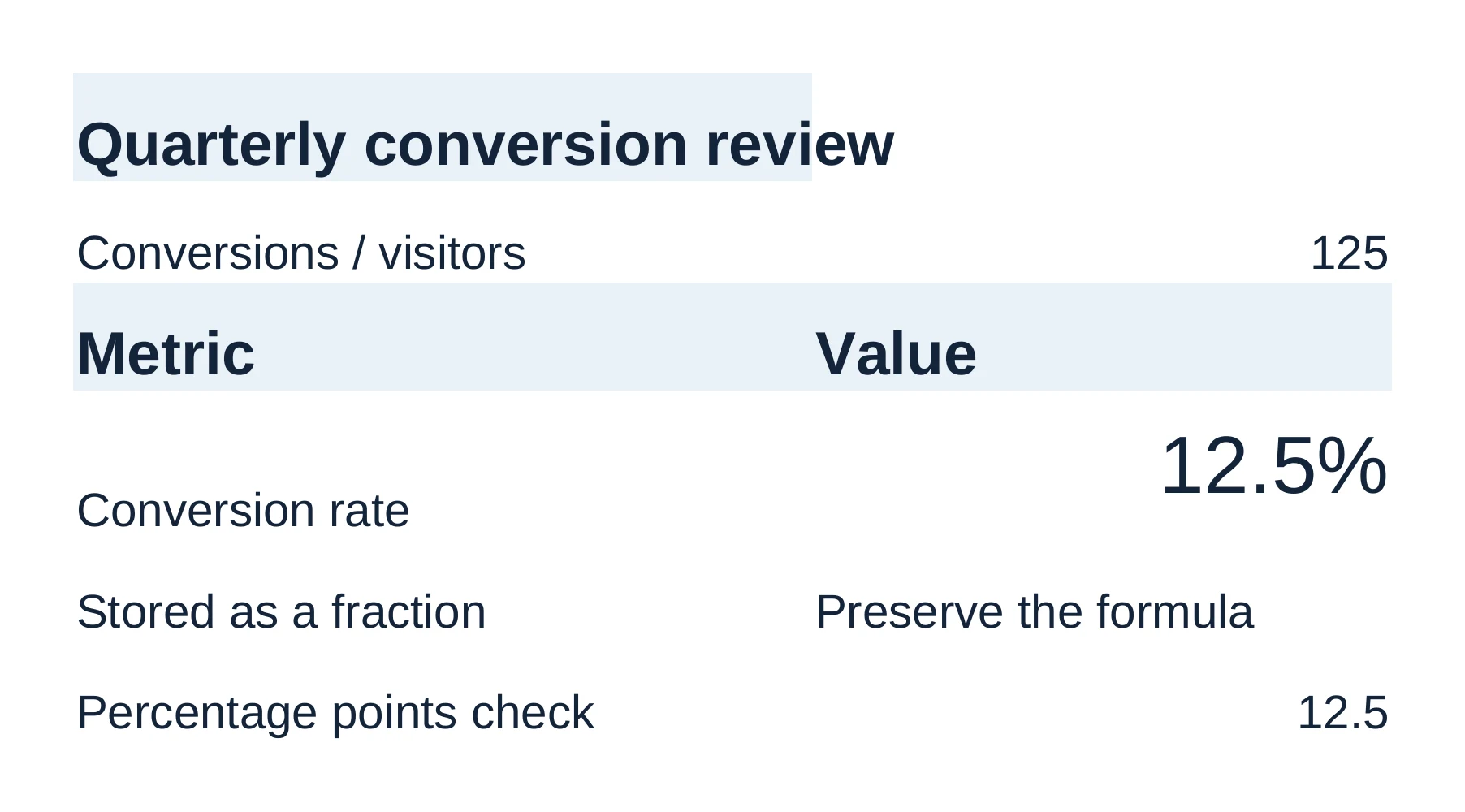
B4 then showed 12.5%. The formula was still =B2/C2 and the stored value was still 0.125. Only the number format changed. That is the pattern to look for in any spreadsheet fix: the cell you asked about changes in the way you asked, and its inputs stay put. The full run is in what the agent can do in each format.
Check what depends on the total
A corrected total moves every number that reads it. Before you send the workbook, ask the agent to trace them.
Prompt
List every cell and chart in @finance/regional-revenue.xlsx that refers to
Quarter 2!E7, directly or through another cell. For each, show the old and
new result. Do not edit anything.
You should see a list in the agent pane and no review bar.
Then check, in Excel:
| Check | What to look for |
|---|---|
| Summary sheets | Cross-sheet totals pick up the new figure |
| Ratios | Shares of total and growth rates use the corrected total |
| Charts | The chart's source range includes the new row, and its labels still match |
| Recalculation | Press F9 or check that calculation is set to automatic |
Nebula Writer cannot calculate every Excel function. When a workbook uses one it cannot, a Some formulas need attention banner appears above the grid, and those cells keep the value saved in the file. Open the final file in Excel and recalculate before you rely on the numbers. The spreadsheet guide covers the banners and the review steps in more detail.
Related
- The AI spreadsheet editor and turning a workbook into a report
- Keep or discard: how to check every AI edit
Microsoft and Excel are trademarks of Microsoft Corporation; Nebula Writer is not affiliated with Microsoft. The editor is free forever with a monthly AI allowance. Pro is $25 a month for more AI. Download Nebula Writer.