News
OpenAI Prism is shutting down. Keep your files with Nebula.
Tired of your files getting deleted? Prism shuts down January 1, 2027. Export your research and keep writing with Nebula, where your files stay in your folder.
- Nebula Writer Team
- November 4, 2026
- 4 min read
Tired of your files getting deleted? Use Nebula.
Your thesis, paper or research notes should stay yours long after the app you wrote them in changes direction.
OpenAI has announced that Prism will shut down on January 1, 2027. Its official announcement tells users to export their projects before that date. The migration guide says Prism-related data will be deleted after shutdown and cannot be recovered afterward.
If your work is in Prism, export it now. Then choose a writing setup where the working files live in a folder you control.
That is how Nebula Writer works.
Your research deserves more than an export deadline
A paper can take years to write. Along the way, you collect chapter drafts, figures, references and the small decisions that make the final argument hold together. A shutdown adds another job: rescuing that work and getting it to build somewhere else, often while you already have a submission deadline.
With Nebula, you open a folder on your computer and work on the files inside it. Your .tex sources, .bib bibliography and figures stay ordinary files. You can copy the folder, back it up, put it in Git or open it in another compatible editor.
There is no separate export step to get those working files out of Nebula. They are already in your folder.
Move your Prism project to Nebula
Start by saving your work from Prism:
- Open Settings → Data Controls → Export all projects (zip) → Download zip, or use Export (zip) in an individual project's title menu.
- Save the latest compiled PDF for comparison.
- Preserve important comments and history separately; they are not included in the project-file export.
These export details come from OpenAI's migration guide. Keep the original archive as an untouched backup.
Next, make a working copy:
- Unzip the project into its own folder, keeping the directory structure intact.
- Download Nebula Writer and choose Open Folder.
- Open the main
.texfile and choose Compile now. If the folder contains multiple main documents, select the intended one under LaTeX Projects or Entry Point in the preview toolbar's ... menu. - Compare the result with your saved PDF. Check figures, equations, citations, bibliography and page count before continuing to edit.
Nebula includes Tectonic and supports managed TeX Live for projects that need additional packages or tools. Existing templates may need an engine or package adjustment; the LaTeX guide explains the options.
Keep AI help in your writing workflow
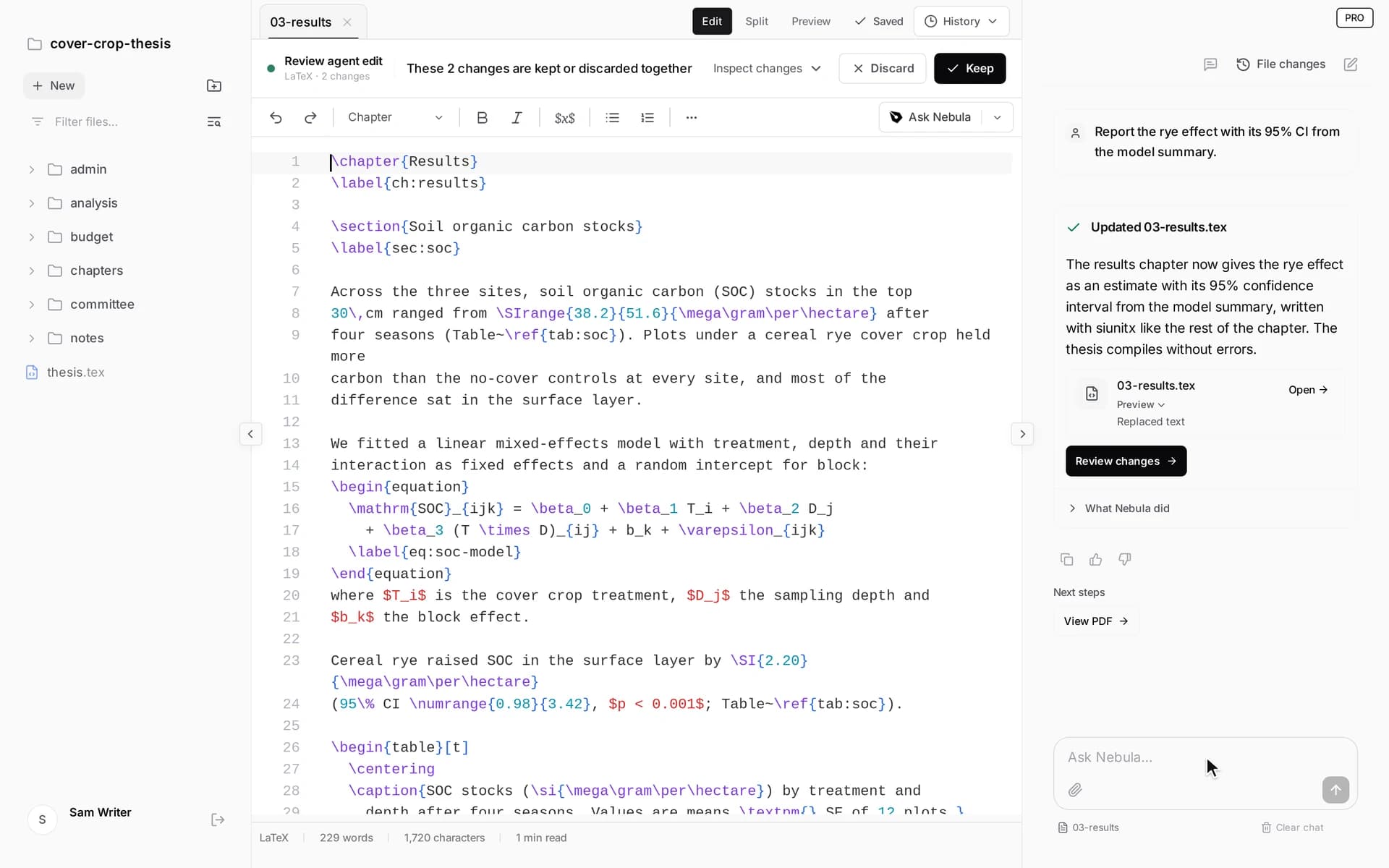
Working with local files still gives you AI help. Nebula's agent can explain compile errors, edit LaTeX, work with your bibliography and inspect rendered pages.
Try a focused first request:
Prompt
Compile @main.tex and explain the first actionable error, if any.
Check that the project's figures and bibliography are found.
Do not edit any files yet.
When you ask for an edit, Nebula saves a restore point before the agent changes the file. Review the changes, then choose Keep or Discard. For LaTeX, you can review individual changes.
The agent runs in the cloud: your request and the document content it needs go to our servers and our AI provider. The working files remain in your folder. See what happens to your files when you use the agent for the details.
Keep a backup you control
Save your project somewhere you can back up regularly, and keep another copy on a separate drive or backup service. Nebula's local restore points help undo recent changes; use your own backup or version control for a lasting archive.
If you write with coauthors, agree on how to exchange and merge drafts. Nebula does not offer simultaneous live co-editing. You can work with shared revisions through Git or exchange files, and use Word documents for collaborators who prefer them.
Keep writing in Nebula
You should be able to choose your next editor on your own schedule. Keeping your sources in ordinary files makes that choice easier.
Nebula brings LaTeX, Word documents, spreadsheets, presentations and Markdown into one desktop workspace, with an agent that works on the files you already have.
Tired of your files getting deleted? Keep them in your folder. Write with Nebula.
Download Nebula Writer and open your exported project.