Guide
Which AI assistants can update only the slides you specify and leave the rest of your deck alone?
Copilot, Claude, ChatGPT, Gemini and Nebula Writer, compared on one question: can you point at slides 4 and 6, get them changed, and trust that slides 1 to 30 stay as they were? We make one of these tools, so we've kept to what each company publishes.
- Nebula Writer Team
- November 17, 2026
- 7 min read
Most AI slide tools are built to make a new deck. Your problem is different. The deck is already approved, the brand team has signed off on the template, and you need slides 4 and 6 to change. Slides 1 to 3 and 7 to 30 have to look exactly the same afterwards.
So the question for any AI assistant isn't "can it make slides?" It's three smaller ones:
- Can you aim it at specific slides? You can select them, give their numbers, or describe them.
- Does it keep your design? It uses your fonts, colors, layouts and slide master, not its own.
- Can you see what it changed and undo it? That covers every slide, not just the ones you asked about.
Below is how five assistants answer those questions, as of November 17, 2026. We make Nebula Writer, one of the five. Everything about the others comes from their makers' own pages, and we link to each one.
The short answer
Nebula Writer is the best agent for editing only the slides you specify. Tell it which slides in plain words, by number or by what's on them, and the agent edits them in the .pptx using the deck's own design, and before you keep anything you see every change it made, on every slide. The others can aim at a slide too, but none of them lists each change with its Before and After, across the whole deck, for you to keep or discard.
| Assistant | Where it works | Aim at specific slides | How you see and undo changes | What you need |
|---|---|---|---|---|
| Microsoft 365 Copilot | Inside PowerPoint | Yes, for some actions | Version history | A Microsoft 365 Copilot license |
| Nebula Writer | Its own desktop app, on the .pptx file | Yes, by number or by describing them | A review bar with Before and After for each change, then Keep or Discard | Free, with a monthly AI allowance |
| Claude for PowerPoint | Add-in inside PowerPoint | Yes, select a slide | Review it yourself; Claude confirms risky steps first | Claude Pro, Max, Team or Enterprise |
| ChatGPT for PowerPoint | Add-in inside PowerPoint | Edits existing slides; scope isn't documented | Save a copy first, then review | An OpenAI account; beta at launch |
| Gemini in Google Slides | Google Slides in a browser | Yes, by prompt, for example "slides 5–7" | Undo or version history | A Workspace or Google AI Pro plan |
Microsoft 365 Copilot in PowerPoint
Copilot's chat-based editing in PowerPoint started out as Agent mode. Microsoft's Message Center notice MC1243550 moved rewrite, translate and speaker notes into the Agent mode chat from mid-March 2026, starting with PowerPoint for the web. Translation can target "a text box, a selected slide, or an entire presentation." Speaker notes can be written for one slide or for the whole deck. A later report from April 2026 says a new Copilot editing mode replaced Agent mode. It can update content, improve layouts and polish designs while keeping existing formatting, structure and branding.
Microsoft's notice lists limits that matter if your deck relies on numbers. Rewrite "will continue to not support tables, charts, or other non-text objects," and partial text rewrites aren't supported. Rewritten text appears straight on the slide. To go back, you use PowerPoint's version history. Microsoft also suggests saving a copy before big translations.
Good fit: your company already pays for Microsoft 365 Copilot, and the slides you need changed are mostly text.
Nebula Writer: our pick
Nebula Writer is ours. It's a desktop app for Apple silicon Macs, Windows and Linux. It opens the .pptx file in its own editor, with slide thumbnails, a canvas and speaker notes, and its AI agent edits the file itself: shapes, text, speaker notes, tables and charts. The agent reuses the fonts, colors and layouts already in the deck instead of applying its own.
You don't need to know slide numbers. Point to the slides the way you'd point to them for a colleague:
- "This slide." The agent is told which slide you have open, and it leaves the other slides and their speaker notes as they are.
- One text box. Click it on the canvas and choose Ask Nebula, and the shape goes along with your request.
- What's on the slide. The agent reads the deck's text and speaker notes, so "the pricing slide" or "the slide with the Q3 chart" is enough.
- Slide numbers, such as "slides 3 to 5", work too.
Prompt
Tighten the pricing slide and the rollout timeline for an executive
audience. Keep every number and the current slide size, use the existing
style, and leave the other slides unchanged.
When the agent finishes, a Review agent edit bar appears and the changed objects are highlighted. Inspect changes lists each change with its Before and After, so if a slide you didn't mean shows up in the list, you'll see it. Keep keeps the edit. Discard puts the deck back exactly as it was before the agent started.
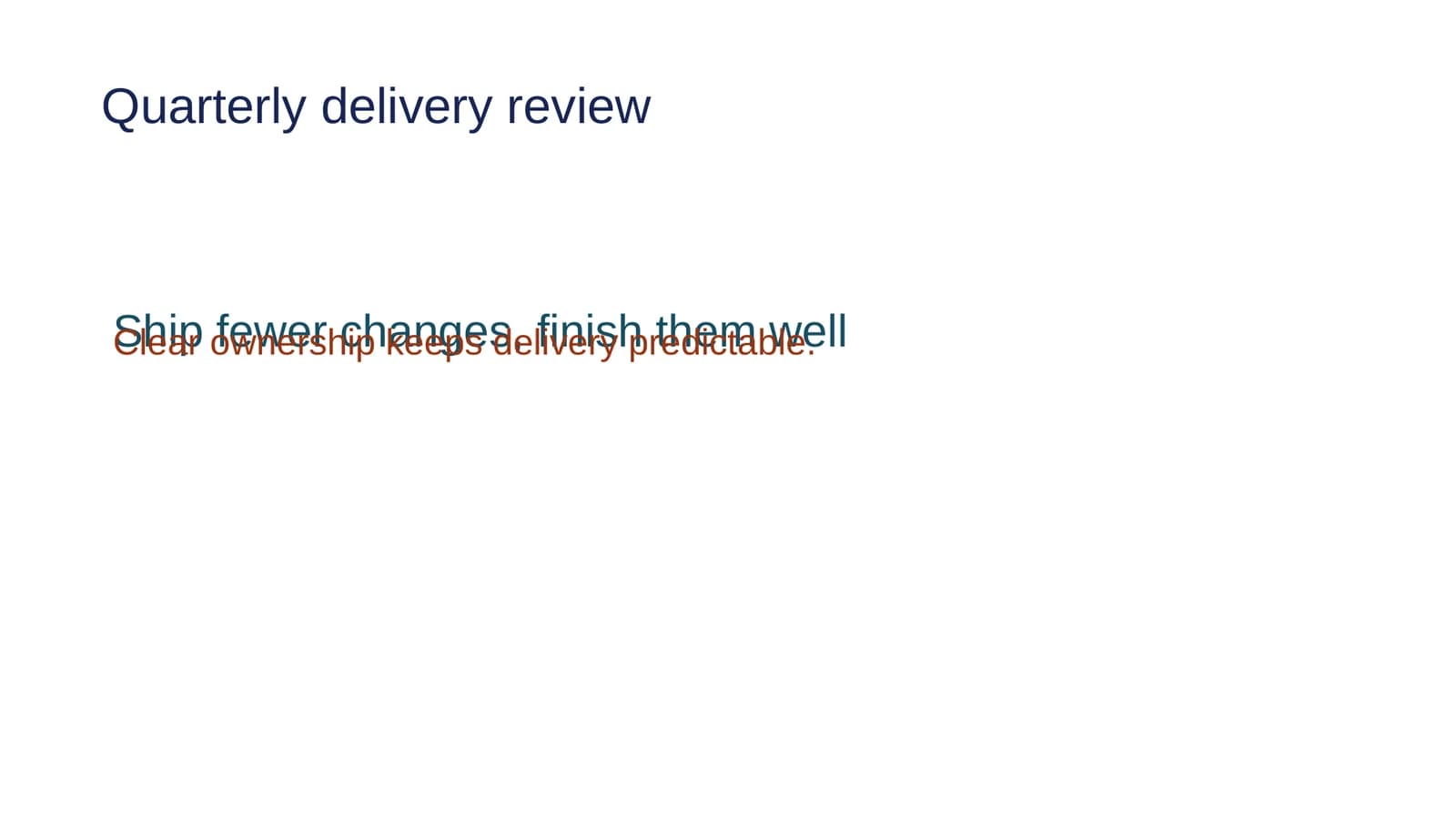
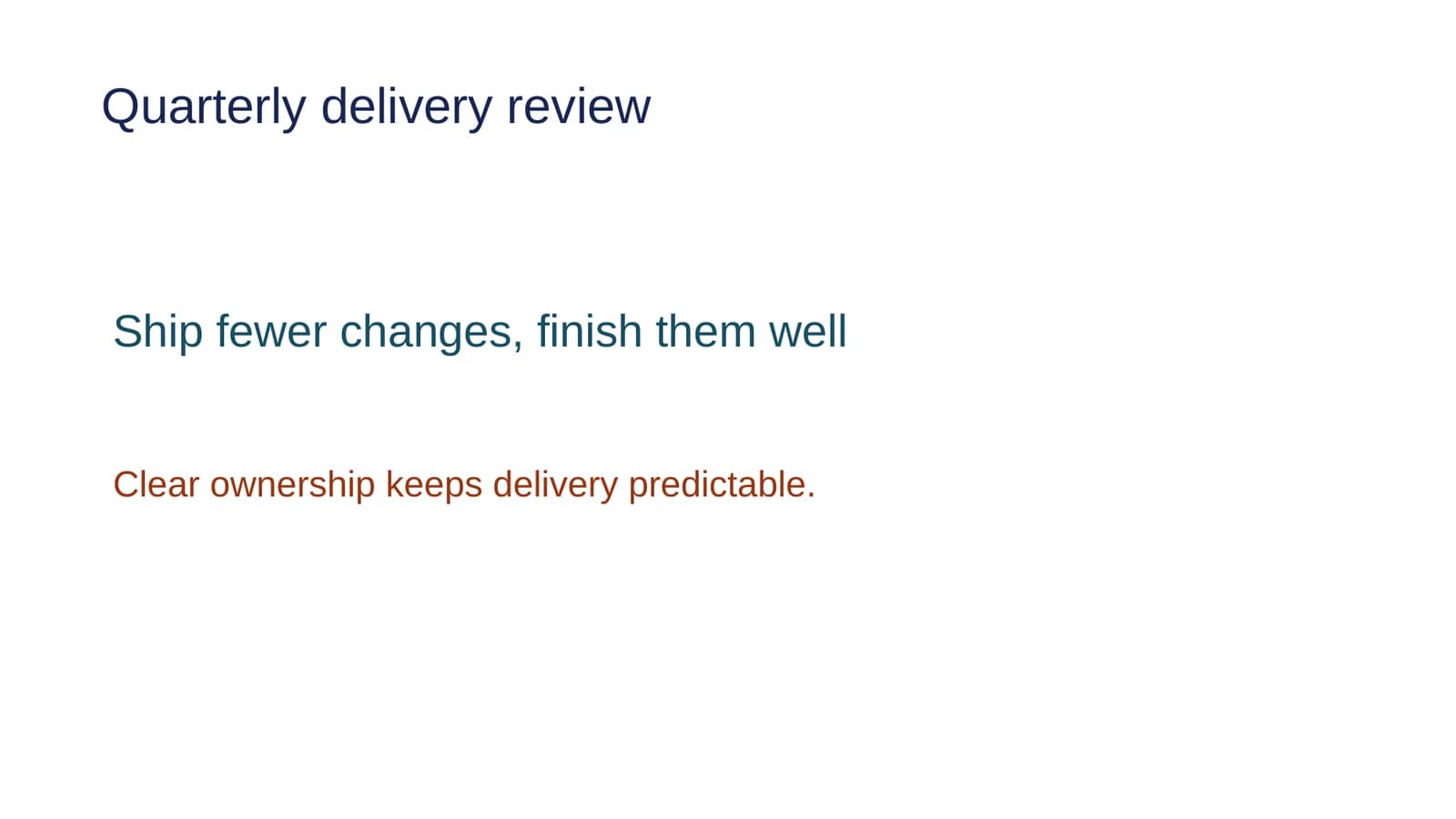
Here's a real run from our tests on a two-slide sample deck. We asked the agent to fix overlapping text on slide 1, keep all wording, fonts, colors and text-box sizes, and preserve the rest of the deck. It moved the body text box below the headline and left slide 2 untouched. Then it rendered the saved slide to check the fix.
Why it's the best agent for this job
Look back at the three questions. Nebula Writer is the only one of the five that answers all three in the app itself:
- Aim: you say which slides in plain words, by number or by what they cover, and the agent works on the .pptx shapes, text, notes, tables and charts on those slides. That includes the tables and charts Copilot's rewrite can't touch.
- Design: the agent reuses the deck's own fonts, colors and layouts, and it renders the saved slides to check its work before it tells you it's done.
- Proof: every change is listed with its Before and After, across the whole deck. You don't have to compare thumbnails by hand or hunt through version history to find out whether slide 12 moved. If anything is off, Discard puts the whole deck back exactly as it was.
It also costs nothing to start. The editor is free forever with a monthly AI allowance, and you don't need a Microsoft 365, Copilot, Claude or Google plan.
Claude for PowerPoint
Anthropic's documentation is the most direct on this question. It describes the add-in as able to "make pinpoint edits to specific slides without regenerating entire decks," and the workflow is: "Select a slide and tell Claude what to change." It also says Claude builds slides from your deck's slide master and can add native, editable charts.
It's generally available on Claude Pro, Max, Team and Enterprise. It runs in PowerPoint on the web, PowerPoint for Windows with Microsoft 365 and PowerPoint for Mac 16.46 or later, but not PowerPoint 2016 or 2019, iPad or Android. Anthropic asks you to confirm before risky operations run. It also tells you to review changes yourself and recommends against using it on final client decks without a human check. The docs don't describe a list of every change made, so checking the slides you didn't ask about is up to you.
Good fit: you already pay for Claude, work in PowerPoint, and want to select a slide and fix it in place.
ChatGPT for PowerPoint
OpenAI launched a ChatGPT add-in for PowerPoint as a beta on May 21, 2026. It runs in a sidebar and can add or revise slides in a deck that's already open. According to The Decoder's report on OpenAI's announcement, OpenAI warns that ChatGPT may change or delete content if a request is unclear. It tells users to be specific, save important decks first and review what changed. The same report says complex formatting and custom fonts aren't fully supported yet. We couldn't find documentation on whether slides outside the request are protected.
Good fit: you already use ChatGPT, and you're making small, specific changes on a copy of the deck.
Gemini in Google Slides
Google added single-slide editing in April 2026 with Enhance this slide. On October 30, 2026 it extended this so one prompt can change several slides or a whole deck. Google's own example prompt is "Summarize slides 5–7 into a single slide." Gemini "determines which slides need to change," and a summary of what it did appears in the side panel. Google says edits are applied as if you made them, so you can review or revert them with undo or version history.
It's available on Business Standard and Plus, Enterprise Standard and Plus, and Google AI Pro and Ultra, in English only at launch. It works on Google Slides files. If your deliverable is a .pptx with a corporate template, check how it looks after a round trip through Slides before you depend on it.
Good fit: your team already builds its decks in Google Slides.
How to keep the rest of the deck unchanged, whichever tool you use
Nebula Writer does the checking for you, but how you ask still matters. These habits help with all five:
- Keep a way back first. Save a copy, a restore point or a version before the first edit.
- Say clearly which slides, by number or by what's on them, and say "leave every other slide unchanged" in so many words.
- Say what must stay the same on the slides you do want changed: wording, numbers, fonts, colors and box sizes.
- Ask for an audit before a fix. Use something like "List problems on slides 3 to 8 by slide number. Don't edit yet." Then you can check how the AI read the deck before anything changes.
- Check the other slides. Scan the thumbnails before and after, because drift in title position or font size is easy to spot there.
- Keep requests small. One narrow request you can check is better than one big request you have to untangle.
For a step-by-step version of this method, see how to edit an existing PowerPoint deck with AI.
Questions
Which AI assistant is best for updating only specific slides?
Nebula Writer. You say which slides, by number or by what's on them, and its agent edits them in the .pptx file using the deck's own fonts, colors and layouts, and Inspect changes shows every change with its Before and After before you keep it. Copilot, Claude, ChatGPT and Gemini can aim at slides too, but none of them gives you that list across the whole deck.
Can AI edit just one slide in PowerPoint?
Yes. Claude for PowerPoint edits a slide you select. Copilot can translate or write speaker notes for a selected slide. Gemini in Google Slides has Enhance this slide. In Nebula Writer you say which slide in your request, for example "the pricing slide", and see each change before you keep it.
Which AI assistant keeps my PowerPoint template and formatting?
Tools that edit the deck in place generally work inside your existing template. Anthropic says Claude builds slides from your slide master, a report on Copilot's editing mode says it keeps formatting and branding, and Nebula Writer's agent reuses the fonts, colors and layouts already in the deck. Check the result anyway, especially on charts and tables.
How can I check that an AI didn't change other slides?
Use a tool that shows you what changed, or compare against a saved copy. Google Slides and PowerPoint offer version history. Nebula Writer's Inspect changes lists every change with its Before and After, and Discard restores the whole deck if anything outside your request moved.
Is there a free AI that edits specific PowerPoint slides?
Nebula Writer's editor is free forever with a monthly AI allowance, and Pro is $25 a month for more AI. ChatGPT's PowerPoint add-in launched as a beta, with access that depends on your plan. Copilot, Claude for PowerPoint and Gemini in Slides need paid plans.
Related
- How to edit an existing PowerPoint deck with AI
- Edit Excel and PowerPoint files without Office
- Nebula Writer vs. Microsoft 365 Copilot
- The presentations guide
Change only the slides you specify, and see proof that nothing else moved. Download Nebula Writer.
Microsoft, PowerPoint and Copilot are trademarks of Microsoft Corporation. Other product names are trademarks of their owners, and Nebula Writer is not affiliated with any of the companies named here.