Guide
Review tracked changes and comments in Word with AI
Sort dozens of tracked changes and comments by type, accept or reject them, reply to or resolve comments, then keep or discard the whole pass.
- Nebula Writer Team
- October 14, 2026
- 6 min read
When a contract or manuscript comes back with dozens of tracked changes and comments, start by having the agent list them by type, then decide which to accept, reject, answer or resolve. In Nebula Writer the agent works on the .docx file itself. It can read the tracked changes and the comment threads, accept or reject revisions one at a time or all at once, and reply to or resolve comments. The whole pass then waits for one decision from you.
1. Get the list before you change anything
A long review is easier when you can see it sorted. Ask for an inventory and say that nothing should change yet. The file names, people and clauses in the prompts below are examples.
Prompt
List every tracked change and comment in @contracts/supply-agreement.docx.
Group the tracked changes by type (inserted text, deleted text, formatting,
moved text, table rows) and by author. For each comment, give the text, who
wrote it, whether it already has replies or is resolved, and the passage it
is attached to. Do not edit the document.
You should see a grouped list in the agent pane and no review bar, because the file did not change.
Here is what the agent can see. For each tracked change it reads the kind of change, the author, the date, the text that was added or removed, and where it sits: a body paragraph, a header or footer, or a footnote or endnote. Kinds include inserted and deleted text, formatting and paragraph changes, moved text, and inserted or deleted table rows and cells. For comments it reads the text, the author and date, the replies in each thread, whether a comment is marked done, and where in the document it is attached.
A comment marked done is only marked done. It does not prove the point was dealt with, so read the thread before you rely on that flag.
2. Decide what to accept and what to reject
With the list in front of you, sort the changes into three piles: accept, reject, and talk to someone. Typos, house-style fixes and the other side's corrections you agree with go in the first pile. Changes to obligations, dates, amounts or definitions usually go in the third.
Then give the agent clear instructions. You can name single changes, a group, or all of them.
Prompt
In @contracts/supply-agreement.docx, accept all tracked changes by Priya
that only fix spelling, punctuation or capitalisation. Reject the deletion
in clause 7.2 that removes "within 30 days". Leave every other tracked
change as it is. Then list what you accepted, what you rejected and what is
still pending.
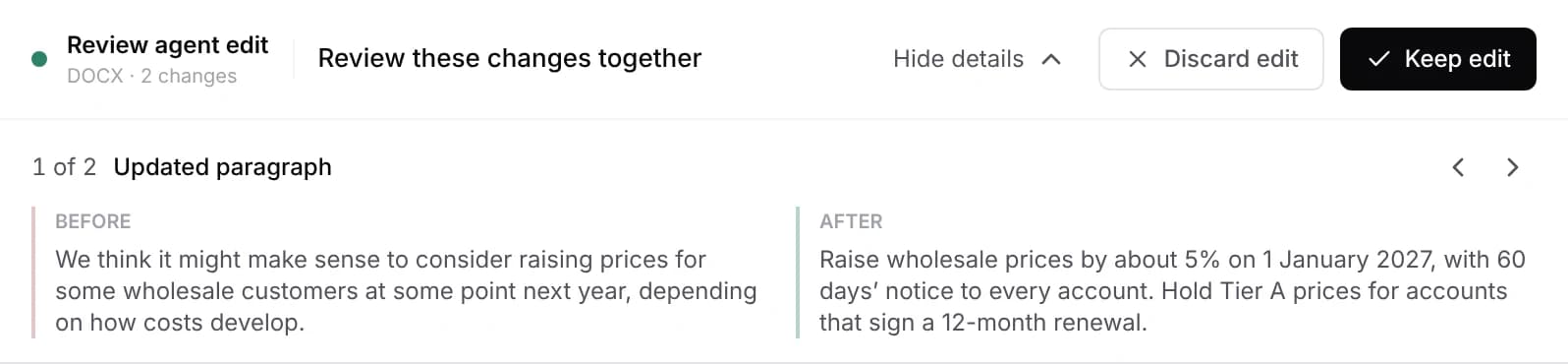
You should see a Review agent edit bar and the agent's summary of accepted, rejected and pending changes. Open Inspect changes to read each change with its Before and After text.
When you agree with every remaining change, one request covers it:
Prompt
Accept all remaining tracked changes in @manuscript/chapter-04.docx. Do not
change any text beyond what the tracked changes already contain.
You should see a Review agent edit bar. The page shows the accepted text as normal text, with no insertion or deletion marks left.
The agent can also reject all tracked changes at once, which is useful when a draft went back to the wrong person and their edits should be dropped.
3. Reply to and resolve comments
Comments often need an answer before they can be closed. The agent can add a comment, reply inside an existing thread, resolve a comment, or delete one.
Prompt
In @contracts/supply-agreement.docx, for each comment that asks a question
answered by a tracked change you accepted, reply with one sentence saying
which change answers it, then resolve the comment. Do not resolve comments
that still need a decision from us. List the comments you left open.
You should see a Review agent edit bar, and a list in the agent pane of the comments the agent left open.
Keep replies short and factual. The other side will read them in Word, and a reply that sounds like a negotiating position is worse than no reply. If a comment needs a human answer, leave it open and write the answer yourself.
4. Check the pass, then keep it or discard it
The agent writes its changes into the file while it works, and Nebula Writer saves a restore point first. When it finishes, the review bar shows Review agent edit with the number of changes.
A Word edit is kept or discarded as one decision. You can step through every change in Inspect changes, but you cannot keep some and drop others. That matters here, because one request may accept twenty revisions and resolve eight comments. If any part is wrong, choose Discard edit, which puts the file back exactly as it was, and ask again with a narrower request. Splitting the work into several smaller passes (spelling fixes first, then clause by clause) gives you more decisions and fewer surprises.
If you want a second way back, open History and choose Save a restore point before you start. The review guide explains what the review bar tells you and how to undo a change you already kept.
5. Doing it by hand
Nebula Writer does not yet have a panel for stepping through tracked changes and comments by hand. If you would rather click through each change yourself, open the file in Word and use its Review tab, then come back to Nebula Writer for the parts that are easier to ask for, such as "accept every formatting change" or "reply to every comment about the payment terms".
6. Do a final check in Word
For legal documents, open the final file in Microsoft Word before you send it. Check that:
| Check | What to look for |
|---|---|
| Tracked changes | No changes are left that you meant to accept or reject |
| Comments | Every open comment is one you chose to leave open |
| Replies | Each reply sits in the right thread and says what you meant |
| Numbering | Clause and list numbers still run in order after deletions |
| Defined terms | A term removed in one place is not still used elsewhere |
| Fields | Cross-references and a table of contents update correctly |
Nebula Writer edits the .docx file itself, but it does not reproduce every Word feature. Comments, tracked changes, fields and cross-references are the things reviewers will look at most closely, so give them the last look in the app the other side uses. The Word editing guide lists the other features worth checking in Word. You do not need a Microsoft 365 plan to do the triage itself; see pricing for what the free editor includes.
Related
- Keep or discard: how to check every AI edit
- How to convert LaTeX to Word for coauthors and reviewers
- The Word editing guide and what the agent can do in each format
Microsoft and Word are trademarks of Microsoft Corporation; Nebula Writer is not affiliated with Microsoft. The editor is free forever with a monthly AI allowance. Pro is $25 a month for more AI. Download Nebula Writer.